
Order management system for every store you run
Ecommerce order management made simple: track orders from WooCommerce, Shopify and sales channels in one table with fast order status updates.
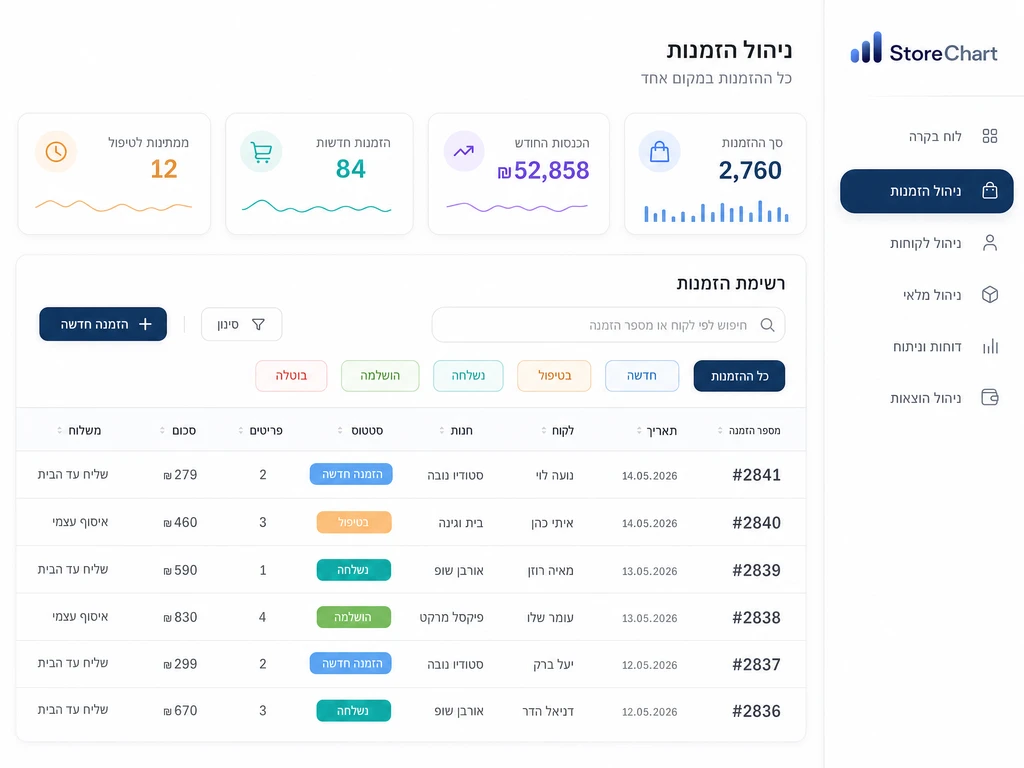
In short
StoreChart's order management system pulls orders from every WooCommerce and Shopify store you connect, through webhooks plus a nightly full sync. Each order shows the customer, status, shipping and profit, and you can add your own statuses and fields. Changes stay in the system and aren't sent back to the store.
Every order in one table
WooCommerce, Shopify and sales channels, with a store column on each order
- Automatic sync from WooCommerce, Shopify and additional sales channels
- Fast search by order number and customer name
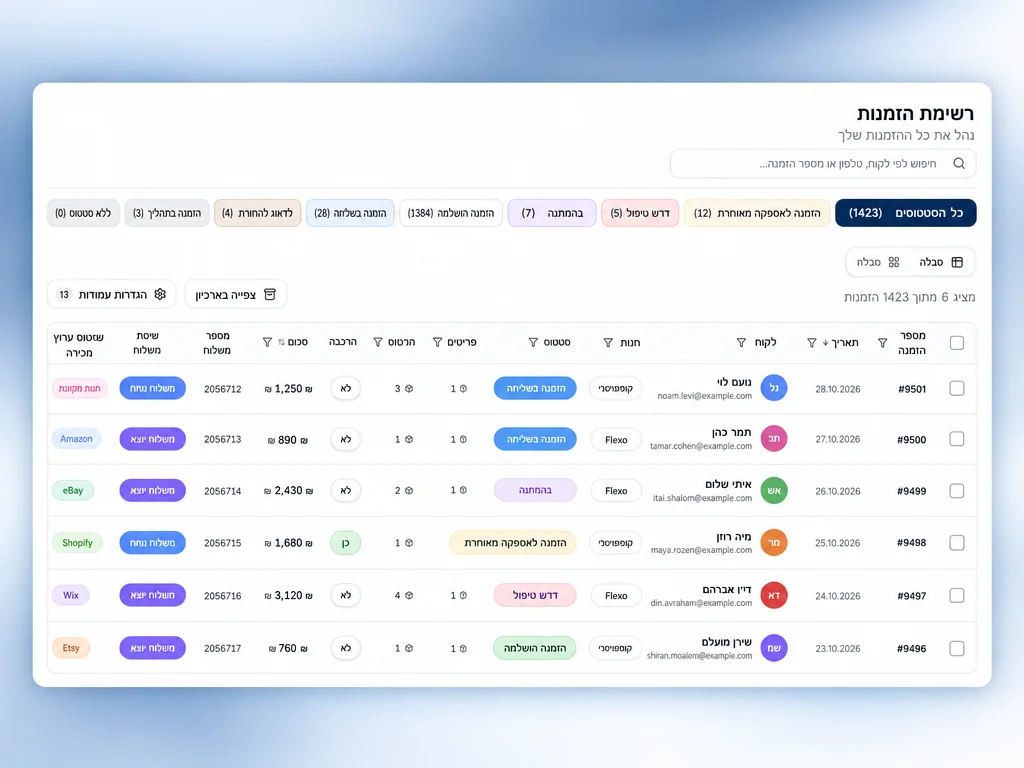
- Choose which columns appear and in what order, and add your own order fields
- Update status, archive or send a WhatsApp message to many orders in one action
Everything order management includes
What saves time in day-to-day order handling
Order management in three steps
From connecting a store to working from the table
Connect your store from the setup wizard, and send a test order to check that webhooks are working.
Existing orders load in the first sync. New orders arrive through webhooks, and a nightly full sync fills in anything missed.
Filter, update several orders at once or drag a card on the process board, and see the profit on each order.
Order management across several stores
With one store, the WooCommerce or Shopify admin is enough. With two or three, an order management system saves you a morning of open tabs and addresses copied into a spreadsheet.
The orders table and process board
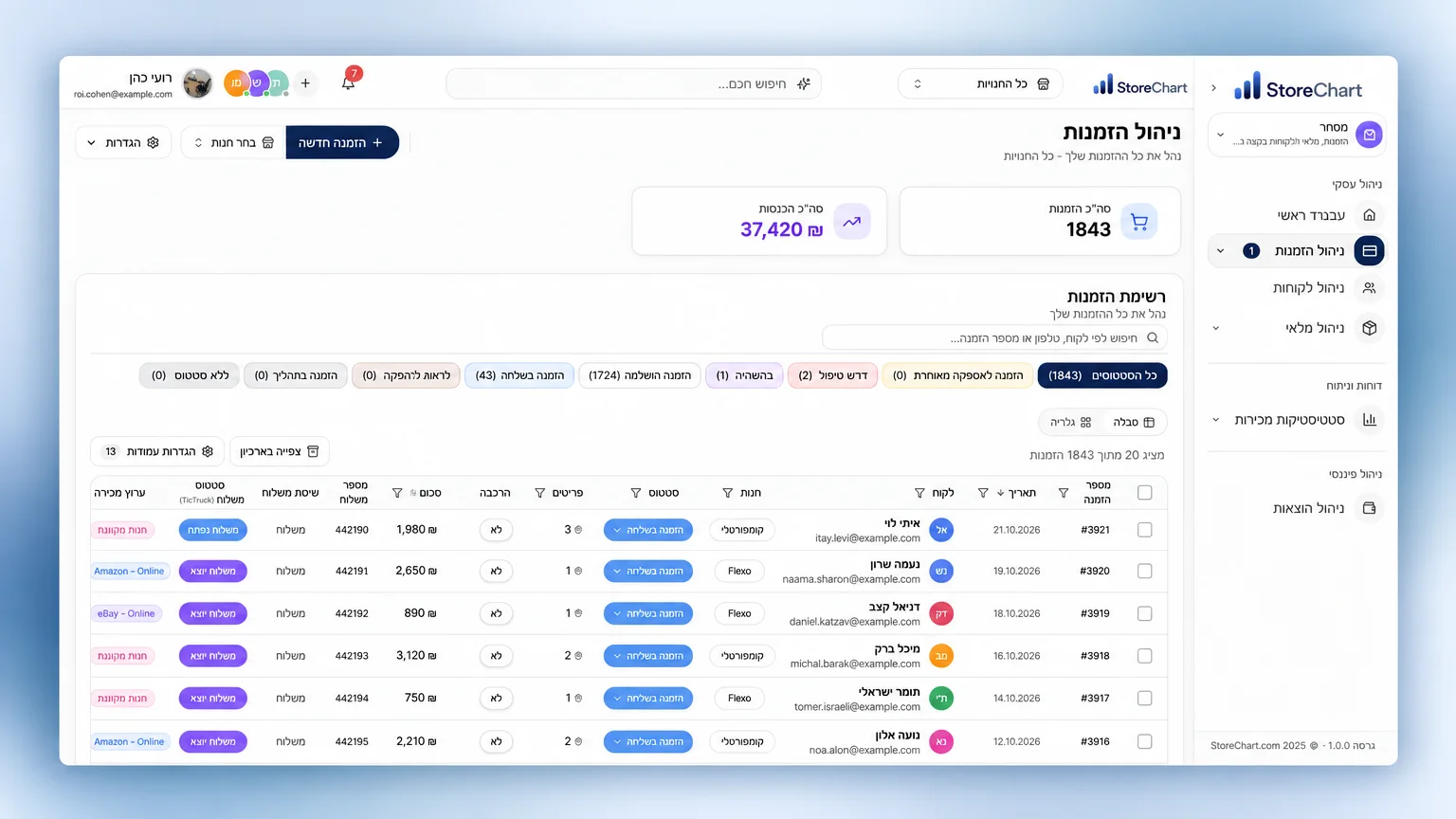
The default view is a table. Each row is an order, with the store it came from, the customer, the amount and the status.
- Columns: which details appear in a row is set in the table settings.
- Your own statuses: set statuses that match your process, each with its own colour.
- Process board: each column is a stage, and dragging a card to the next stage changes its status. The table and the board show the same orders.
- Stages by SKU: a stage can apply only to orders with a specific SKU, such as an assembly step.
- Archive: old orders move to an archive, and you can restore them from there.
Order statuses and stages
Don't copy WooCommerce's status list as it is. Start from what physically happens to an order, and who owns each step.
- Packing from one warehouse: four stages will do: new, packing, shipped and completed.
- Assembly or printing: add a production stage and limit it to the SKUs that go through it.
- Colours: keep red for orders that need a decision, such as a missing address or a sold-out item.
- Ownership: agree up front who moves an order to which stage, so the board reflects reality.
After a few weeks, check which column fills up fastest. That's usually your bottleneck.
Example: a morning with 38 orders
Illustrative only. 38 orders came in overnight from two stores:
- Filter to the "New" status and see all 38 orders from both stores together.
- Tick the 30 whose items are all in stock and move them to "Packing" in one go.
- Share the delivery list with the courier as text, with only the fields they need.
- Open the remaining eight one by one and read the notes.
- A customer orders by phone, and the order is added by hand to the same table.
If your plan includes WhatsApp templates, you can also message selected orders, for example about a delivery delay. By the end of the morning, the "New" filter returns an empty or nearly empty list.
Order page, profit and BI
- Order details: items, notes, delivery details and the customer card.
- Profit: users with access to profitability data see the profit after product cost, shipping and card fees.
- Customer history: the customer card shows whether this is their first order or their tenth.
- BI dashboards: revenue and order charts update along with the table, with no export.
Sync direction: read only
The store connection reads orders; it doesn't write to them.
- Status: changing a status in StoreChart doesn't change it in WooCommerce or Shopify.
- Customer emails: update emails keep going out from the store itself.
- Manual orders: a phone order you add here won't appear in the WooCommerce admin.
Who it's for and what's not included
- Good fit: businesses with more than one store or sales channel, and teams where several people touch the same order.
- One store plus a channel: ambassador or wholesale channel orders land in the same table too.
- Weaker fit: a single store with ten orders a week, packed by the owner. The platform admin will probably do.
- Per-store access: limiting a user to one specific store isn't available at the moment.
- Saved views: saving a filter combination as a named view isn't available at the moment.
The orders table: columns and statuses
The orders table with your chosen columns, filters and status badges
StoreChart vs. Excel and your store admin
What each tool handles in order management
| Capability | Excel | Default platform UI | StoreChart |
|---|---|---|---|
| Multi-store management | — | — | |
| Automatic updates from the store | — | ||
| Bulk editing | — | ||
| Your own columns and fields | — | ||
| Team permissions | — | — |
Store and tool connections




Use cases
From several brands to a distributed team
Run several stores and brands under one account
More orders don't have to mean more manual work: filters, batch updates and your own statuses keep things in order.
Each employee sees only the pages assigned to them, and profit data stays with owners and management.
Frequently asked questions
Which platforms do orders come from?
WooCommerce and Shopify, StoreChart's own sales channels (ambassadors, wholesale, distributors and API), and order import from a CSV file.
How long does it take to bring in existing orders?
The connection itself is done in the setup wizard. After that, existing orders load automatically in the background, and how long it takes depends on how many orders the store has.
Can I update orders from several stores at once?
Yes. Select orders in the table and update their status or archive them in one action, even when they come from several stores.
Do orders update right away?
New orders and updates arrive through webhooks as soon as the store sends them. A nightly full sync, plus a manual sync whenever you want, fills in anything that didn't arrive.
Can I add a phone order by hand?
Yes. Pick the store, an existing or new customer, and add catalogue products or a free-text line. The order is saved in StoreChart and appears in the table with everything else, but it isn't created in the store itself.
Can I change the columns and add my own fields?
Yes. Show, hide and reorder columns, and the layout is saved for the whole account. You can also add your own order fields. Saving filter combinations as named views isn't available at the moment.
Who on my team can edit orders?
Edit access follows each user's role, and you can also limit a user to specific pages. Access can't currently be limited per store.
Related capabilities
Orders from every store on one screen
Start free and connect your first store