
WhatsApp is the messaging app many customers already open several times a day, which makes it a natural place for them to reach a business: asking about a product, checking on an order or requesting a different size. While the owner answers alone from one phone that works, but once there are employees and more orders, one phone passed around stops being enough. This guide explains what WhatsApp Business is, how the free app differs from the API, how to set it up and what it costs, what you may send customers, how to use it on a computer and several devices, and how a store connects it to orders.
WhatsApp Business: two options
WhatsApp Business is a separate, free app that Meta builds for businesses. It runs on Android and iPhone and looks almost exactly like regular WhatsApp. The difference is in the tools for working with customers:
- Business profile: address, hours, website and a short description customers see when they open the chat.
- Product catalog: products with a photo, price and description you can send in a chat.
- Quick replies: saved answers to recurring questions, such as shipping times or returns.
- Greeting and away messages: automatic replies for first-time customers and for after hours.
- Labels: tags such as "new order" or "awaiting payment", so conversations don't get lost.
Customers can see they are talking to a business account, which helps trust.
What the app doesn't include
The app suits one person replying from a phone. It is just as important to know what it does not do:
- No link to orders: conversations are not connected to your order system.
- No team queue: several employees cannot share an orderly queue of chats.
- Minimal automation: it stops at greeting and away messages.
The WhatsApp Business API, through a provider
That is what the WhatsApp Business API is for. Meta's official name is the WhatsApp Business Platform. It is not a phone app but an application programming interface, or API, through which the business's own system sends and receives messages for the number.
- How you connect: through a provider, such as StoreChart.
- Where you work: in the provider's interface, in a browser.
- What you get: a shared team inbox, approved templates, automations and a link to orders.
For the pros and cons of each option, read our guide to what WhatsApp Business is and how it differs from regular WhatsApp.
App or API: how to choose
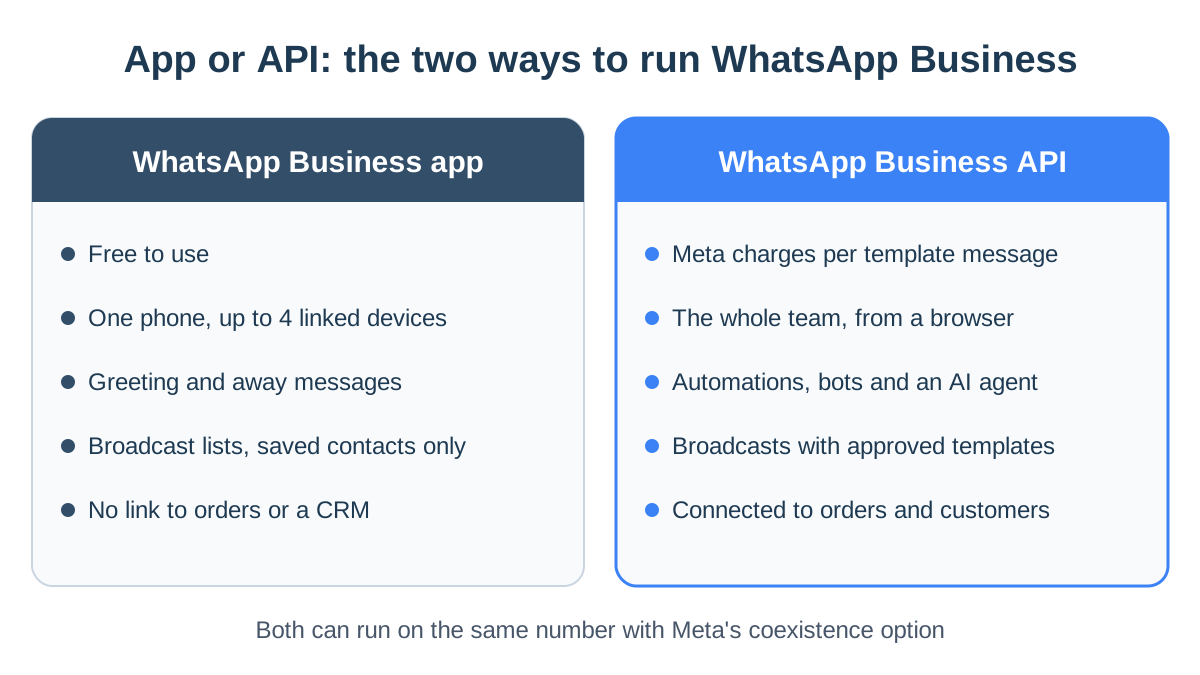
The two options serve different stages of a business. The table sums up the main differences:
| WhatsApp Business app | WhatsApp Business API | |
|---|---|---|
| Who replies to customers | The owner from the phone, plus up to four linked devices | The whole team, from a shared system in the browser |
| Cost from Meta | Free | Charged per template message, by category and country |
| Automated messages | Greeting and away messages | Order updates, event-based automations, bots and an AI agent |
| Messaging many customers | Broadcast lists, only to people who saved your number | Broadcasts with an approved template to customers who opted in |
| Connection to business systems | None | Orders, customers and your store |
| Keeping conversations organized | Labels, and every device sees the same screen | A shared inbox with read and unread states |
When the app is enough
The app is a good, free starting point. It is enough when this sounds like you:
- A small team: one or two people answer customers.
- Few messages: only a handful of conversations a day.
- No automatic updates: you don't need to send order or shipping updates.
When to move to the API
It is time to move to the API when any of these sound familiar:
- Duplicate answers: several employees reply from one number, and some conversations get no answer at all.
- Order updates: you want order and shipping updates to go out without anyone typing them.
- Looking things up: every time a customer writes, someone checks their orders in another system.
- After-hours replies: you want a bot or an AI agent to answer common questions.
Example: an online clothing store
Say an online clothing store gets a few dozen messages a day about sizing, shipping and exchanges. The owner answers from the app, with her computer linked. When a second employee joins, the problems start:
- Double replies: both see the same conversations, and sometimes both answer one customer.
- Dropped chats: each assumes the other already replied.
- Manual lookups: every "where is my order?" means opening the order system to find a tracking number.
That is where the API with a shared inbox pays off:
- The conversation sits next to the customer's orders.
- The shipping update goes out when the status changes.
- Everyone sees which conversations are unread.
The technical details are on the WhatsApp integration page.
You don't have to give up the app
Meta lets you keep using the WhatsApp Business app on the phone while connecting the same number to the API. When you connect a number to StoreChart this way and approve history sharing, StoreChart syncs your existing conversations, up to 180 days back.
WhatsApp Business setup and Meta rates
Setting up the app
Setting up the app takes a few minutes:
- Download WhatsApp Business from your phone's app store.
- Enter the business number and verify it with a code; for a landline, choose a voice call.
- Fill in the business profile: name, category, address, hours and website.
- Set up greeting and away messages and quick replies.
- Add a product catalog if you want to show products in the chat.
If the number is already on regular WhatsApp, the app offers to move it, and on the same phone your chats move too.
Connecting the number to the API
With the API, you connect through a provider, using a Meta flow called Embedded Signup that opens inside the provider's system:
- Sign in with the business's Facebook account.
- Choose or create a WhatsApp Business account.
- Verify the number.
- Add a payment method in Meta's WhatsApp Manager, because Meta bills the business directly.
In StoreChart the flow starts from the WhatsApp settings, where you also choose whether the number is already active in the app. Without a payment method, replies inside the window still work, but charged templates will not go out.
The full process, including business verification and the display name customers see, is in our guide to opening a WhatsApp Business account step by step and what it costs.
What each message costs
The cost difference between the two options is simple:
- The app: free, with no subscription and no charge for messages.
- The API: Meta charges for template messages, based on the message category and the recipient's country.
- Free on the API: free-form replies within 24 hours of the customer's last message, and utility templates sent inside that window.
These are the rates StoreChart uses for cost estimates, as checked against Meta's rate card on March 22, 2026:
- Marketing message: $0.035 per message.
- Utility message: $0.005 per message.
- Authentication message (one-time code): $0.025 per message.
Example: shipping updates and an offer
To see how that turns into a monthly bill, say a store sends in one month:
- 400 shipping updates as utility templates.
- 150 of them free, because those customers wrote to the store in the 24 hours before their update.
- 250 charged at the utility rate.
- An offer to 1,000 customers who opted in. Every one of those is charged at the marketing rate, even for customers who wrote recently.
Rates vary by country and change over time, so check Meta's official pricing page before a large campaign. With StoreChart, Meta bills you for messages directly, separately from your StoreChart subscription.
Meta's messaging rules
WhatsApp Business rules protect customers from spam, which is what keeps the channel trustworthy. Four concepts explain almost everything.
The 24-hour customer service window
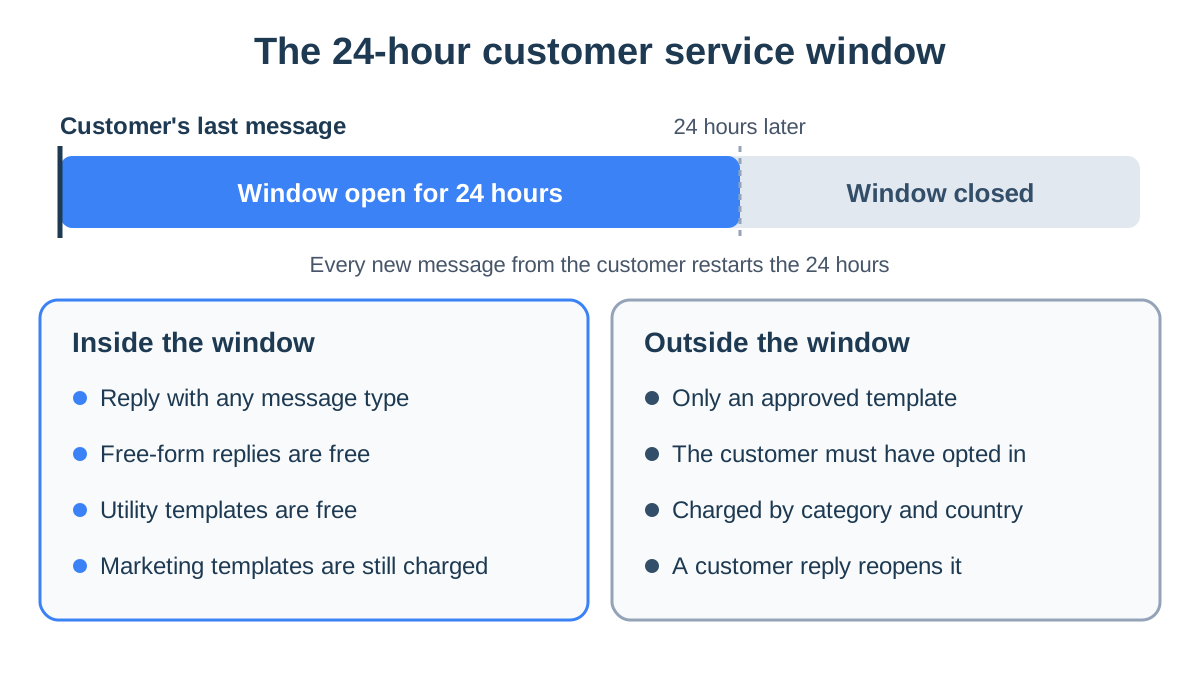
When a customer sends a message, a 24-hour window opens:
- Inside the window: reply freely with text, images, documents and voice notes.
- A new customer message: restarts the 24 hours.
- After it closes: the only way to reach the customer is an approved template, until they write again.
In StoreChart, the composer checks the window for each conversation. When it is closed, the text box is replaced with a prompt to pick a template, so nobody types a reply that can't be sent.
Approved templates
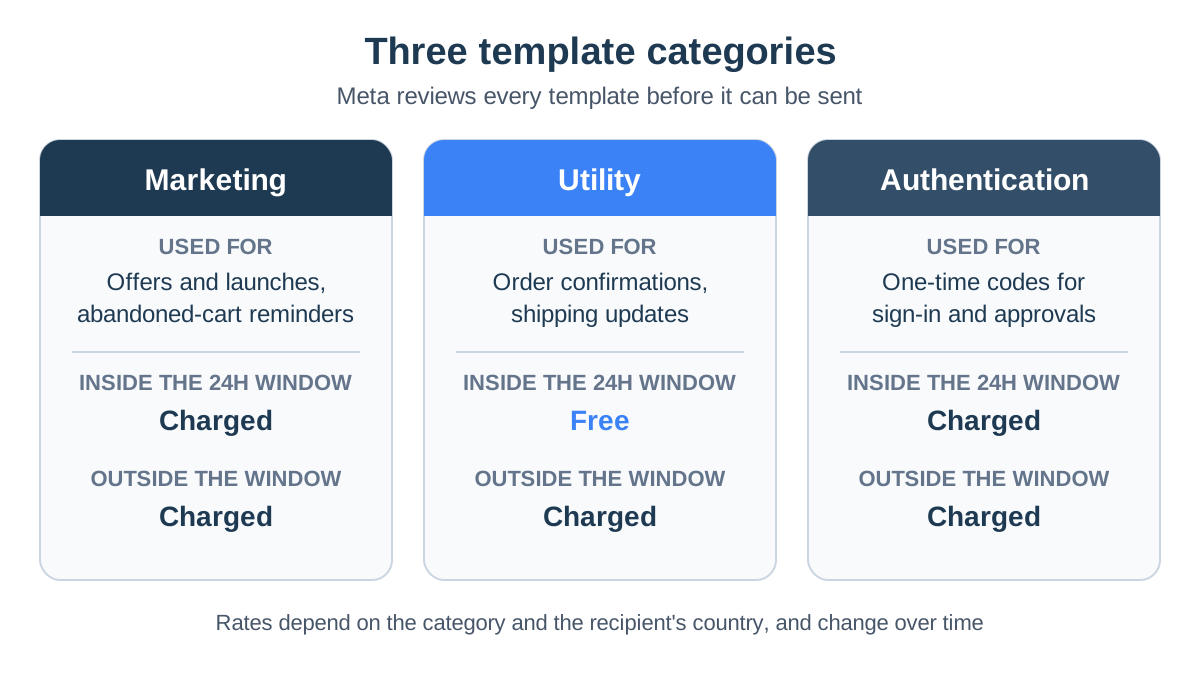
Outside the window, or when the business writes first, you must use a template: wording Meta reviewed and approved in advance. Templates can include variables, such as the customer's name and order number, plus an image, a document or buttons. There are three categories:
- Marketing: promotions, launches and abandoned cart reminders.
- Utility: order confirmations, shipping updates and payment reminders.
- Authentication: one-time codes for signing in or approving an action.
The category sets the price and the review. Meta can recategorize a "utility" template that actually contains an offer, so keep order updates plain, without a coupon tacked on.
In StoreChart's template editor you write the message next to a live WhatsApp preview, add variables and sample values, and submit it to Meta. The status updates in the system: pending, approved, rejected or paused.
Consent and quality rating
Two rules decide whether your number stays healthy over time:
- Consent: Meta requires customers to agree to receive messages before a business messages them first.
- Quality rating: every number is rated green, yellow or red, driven mainly by blocks and reports.
- Daily limit: a low rating can hold back increases to your daily messaging limit.
- Paused templates: a template that draws negative feedback can be paused.
WhatsApp broadcasts and broadcast lists
A WhatsApp broadcast sends an approved marketing template to a group of customers, as a personal message to each rather than a group chat. It differs from a broadcast list in the app, which only reaches customers who saved your number. The rules:
- Only to customers who opted in, through a checkbox at checkout or on a form that mentions WhatsApp explicitly. Local marketing and privacy laws may add their own consent rules.
- Only with an approved marketing template. Even if the customer wrote yesterday, an offer is a marketing template and is charged as one.
- With a way to stop, such as a button to opt out, and you honor it.
- With segmentation. An offer to customers who bought a specific product gets a better response, and hurts your rating less, than a message to the whole list.
A broadcast in StoreChart works like this:
- Pick recipients from the orders list.
- Choose an approved template, and the variables fill in from each order.
- Customers who wrote in the last 24 hours get it as a free-form message at no cost; everyone else gets the template.
- You see, per recipient, whether it was sent, failed or skipped.
- Each recipient gets a conversation in the inbox, so you can carry on from there.
The details are on the WhatsApp broadcasts page.
Messaging without consent hurts your number
Sending an offer to your whole customer list, including people who never asked for messages, is the fastest route to blocks, a red rating and a restricted number. Send only to customers who opted in, with messages relevant to them.
WhatsApp Business on a computer and two devices
After cost, these are the most common questions, and both answers depend on the option you use.
WhatsApp Business on a computer
With the app, you connect the computer as a linked device:
- Open WhatsApp Web in a browser, or install WhatsApp for Windows or Mac.
- On the phone, open the settings and choose "Linked devices".
- Scan the QR code on the screen.
Then you can type on a keyboard and send files from the computer.
With the API, the computer is where you work. You sign in from a browser on any computer with your own user. In StoreChart every employee has their own user, and team roles decide what each person can see.
WhatsApp Business on two devices
With the app, you can link up to four devices to the main phone:
- What you link: such as an office computer, a laptop and a tablet.
- Phone off: linked devices keep working while the phone is off for a while.
- The limit: every device sees the same conversations, with no division of work and no way to tell who handled what.
With the API, there is no device limit:
- One inbox: everyone works from the same shared inbox.
- Read and unread: read conversations are marked as read.
- Who sent it: each message a teammate sends shows their name.
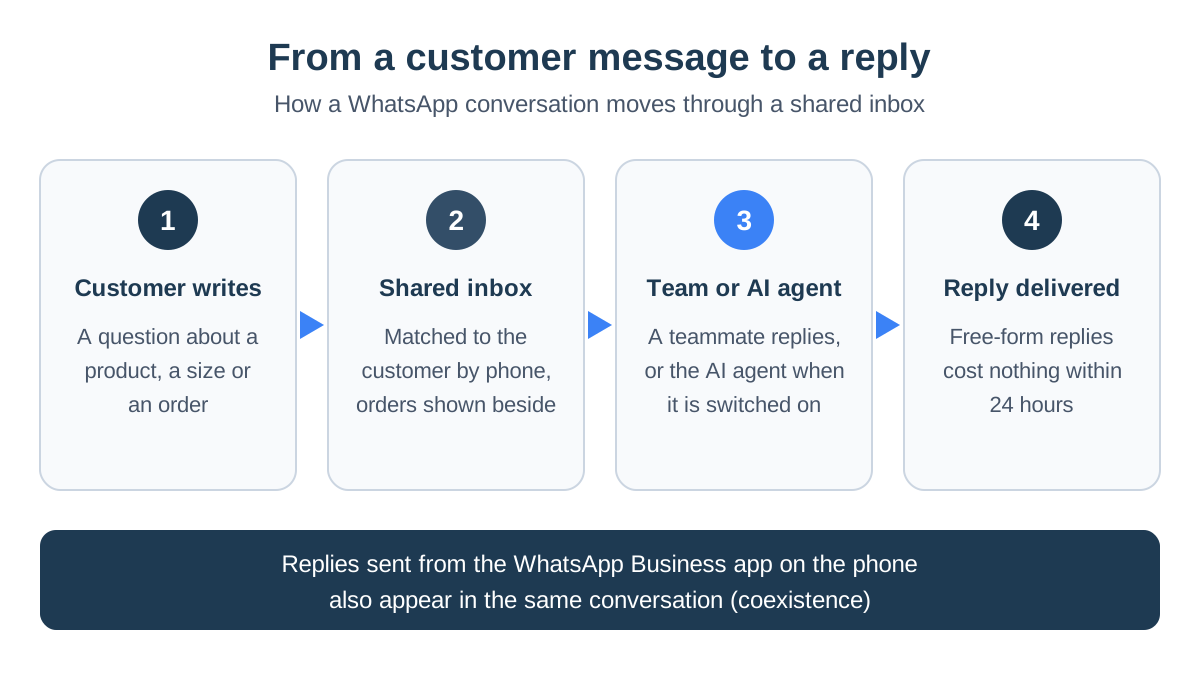
- Phone replies too: if you kept the app active on the same number, messages sent from the phone appear in the customer's conversation, so the team sees everything that was said.
WhatsApp Business for an online store
Once WhatsApp is connected to the store's system, it becomes part of handling the order rather than one more channel to check. This is the path of a single message:
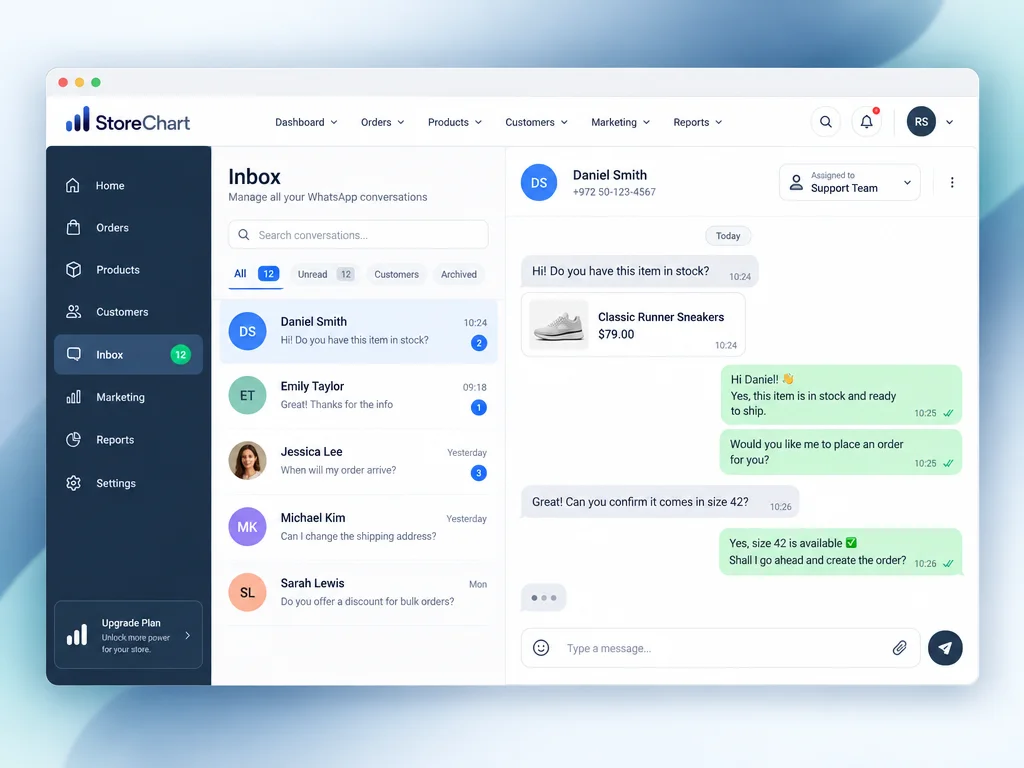
A shared WhatsApp inbox
Every conversation on the number lands in the shared WhatsApp inbox, where the whole team works at once:
- Several numbers: you can connect more than one number, depending on your plan, each belonging to its own store.
- Customer profile: conversations are matched by phone number to the customer's profile, and the panel beside the chat shows their orders.
- Buyer or lead: the list marks who has bought and who is an open lead.
- Search: by customer name, phone number in common formats (with or without the country code, spaces or dashes) and the last message.
- Staying organized: mark conversations read or unread, and send saved quick replies.
Automations for order updates
An automation responds to an event and sends the customer an approved template with their details. The triggers:
- A new order and an order status change.
- A set time after an order.
- A new lead and a lead status change.
- An incoming message.
Add conditions, such as the order total, products, shipping method or customer tags. Add a delay too, so a review request goes out days after the order.
Every run is recorded in the run history, with what the automation decided and what Meta reported about delivery, so when an update did not arrive you can see why. As with broadcasts, when the customer's window is open, the message goes out as a free-form message at no cost.
Automatic replies with an AI agent
A bot answers when nobody on the team is available. A fixed-menu bot ("press 1 to track your order") handles one simple question but gets stuck when customers type freely.
A WhatsApp AI agent reads the message and replies in the customer's language, based on the business's knowledge base. You can also build the knowledge base from past conversations: the system pulls out recurring questions and the answers your team gave.
For each conversation you choose how the agent works:
- Off: the agent stays silent and the team handles the chat.
- Supervised: the agent replies itself, and stops as soon as a teammate sends a message in that conversation, including from the app on the phone.
- Auto: the agent keeps replying even after a teammate joins.
We compare menu bots, chatbots and AI agents in our guide to the WhatsApp bot: chatbot or AI agent.
WhatsApp Business guide: seven quick steps
Whether you are starting out or tidying up an existing channel, this order saves the most mistakes:
- Pick a permanent number customers already know. A landline works too.
- Complete the business profile: name, description, hours, address and website.
- Choose your option: the app for one or two people, the API for a team, many orders or automation.
- Write quick replies for the five most common questions, such as shipping, returns and sizing.
- Prepare two utility templates, an order confirmation and a shipping update, and submit them early, since approval can take time.
- Collect broadcast consent at checkout and on forms before planning the first offer.
- Decide who replies, and when, including evenings and whether an AI agent covers those hours.
Common WhatsApp Business mistakes
- A personal number as the business number. When that employee leaves, the conversations leave too.
- An offer inside a utility template. Meta may recategorize or reject it.
- Sending to the whole list. Without consent and segmentation, blocks come fast.
- Replying two days later. After 24 hours you need a template just to answer.
Key takeaways
- WhatsApp Business comes in two forms: a free app for a small business, and an API for a business with a team, automation and connected systems.
- The app costs nothing. On the API, Meta charges for template messages, and free-form replies within 24 hours of the customer's message are free.
- Outside the 24-hour window, send only a template Meta approved, and send broadcasts only to customers who opted in.
- On a computer, the app works through WhatsApp Web or the desktop app as a linked device; with the API, the whole team works from a browser.
- You can connect the number to the API and keep using the app on the phone.
Frequently asked questions
Is WhatsApp Business free?
The WhatsApp Business app is completely free. On the WhatsApp Business API, Meta charges for the template messages a business sends, based on the message category and the recipient's country, and the provider you connect through charges its own fee. Free-form replies within 24 hours of the customer's last message are free, and so are utility templates sent inside that window.
Can one number run WhatsApp and WhatsApp Business?
Not at the same time. A phone number can be registered in only one app, so moving to WhatsApp Business means moving the number over from regular WhatsApp. If you do it on the same phone, your existing chats move with the number.
Can I use WhatsApp Business on a computer?
Yes. With the app, you link a computer as a linked device, through WhatsApp Web in a browser or the desktop app, by scanning a QR code with the phone. With the API, the whole team replies from a browser inside the system connected to the number, with no phone required.
Can I use WhatsApp Business on two devices?
Yes. The WhatsApp Business app lets you link up to four additional devices to the main phone, such as a computer, a tablet or a second phone. Every device sees the same conversations. If several people reply at once and need to know what has already been handled, move to the API with a shared inbox.
Can I open WhatsApp Business on a landline?
Yes. When verifying the number, choose to receive a voice call instead of an SMS, and the code is read out on the call. That way you can keep using the landline number your customers already know.
How is a broadcast list different from an API broadcast?
A broadcast list in the app only reaches customers who saved the business number in their contacts, and its size is limited. A broadcast through the API goes to customers who opted in, using a template Meta approved in advance, and it does not depend on the customer saving your number. Meta charges for each of those marketing messages.
Can I keep the app after connecting the API?
Yes. Meta lets you keep using the WhatsApp Business app on the phone while connecting the same number to the API. In StoreChart, this kind of connection also syncs your existing chat history, if you approve sharing it while connecting.